How to Add Anchor Links
An anchor link, sometimes called a page jump, is a specific type of URL that links specific text to the top of a later section on the same page of your Squarespace site.
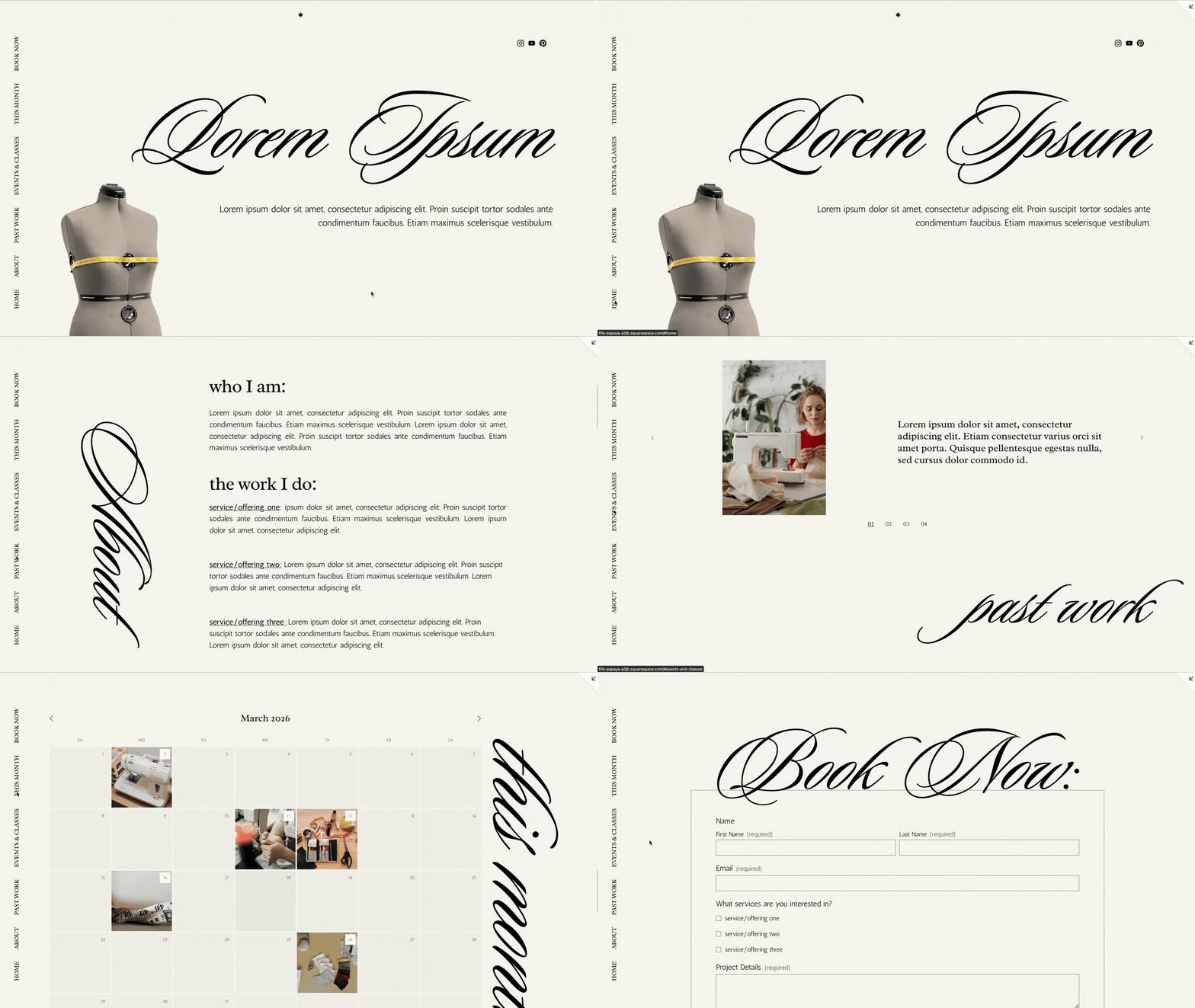
You can see we've used it on our one-page template to mimic the functionality of a menu that a multi-page site would have, only instead of taking you to different pages, it takes you down to the respective section of the single page that you're on:
The way that you add anchor links is simple:
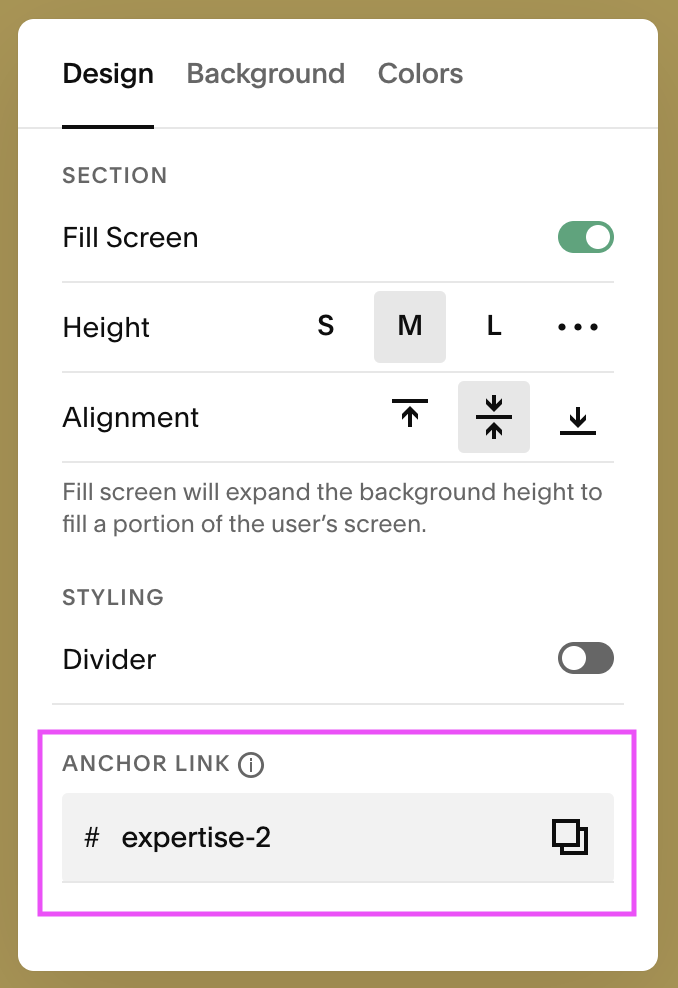
Go into the section that you want to add the anchor link to, hover over & click into the edit section button.
You scroll down to the “anchor link” space, and add in text that will make sense for the URL you’ll be linking to–this is called a slug.
Now in this example I've used these anchor links as a pseudo navigation, which you can do by:
Adding a link under the main navigation section, which you can do by clicking the plus icon, and then scrolling all the way down until you see the “link”
When you've added that, you go to the settings of your added link and you add a forward slash, a hashtag, and then your chosen slug (“/#chosen-slug") and it would function the same way as like a pseudo navigation.
If you want to use anchor links like a hyperlink in your text, where you click it and it jumps down to a different section of your page, you would do that by:
Typing the text that you want to add the anchor link to
Highlighting the text, like you would with any hyperlink, and click the add link icon
,Then type forward slash, the name of the page that you're on, then hash, then the anchor slug. (“/page-name#slug”)
Looking for more of a step by step walk through on this? Watch our video tutorial on both of these anchor link options below!